
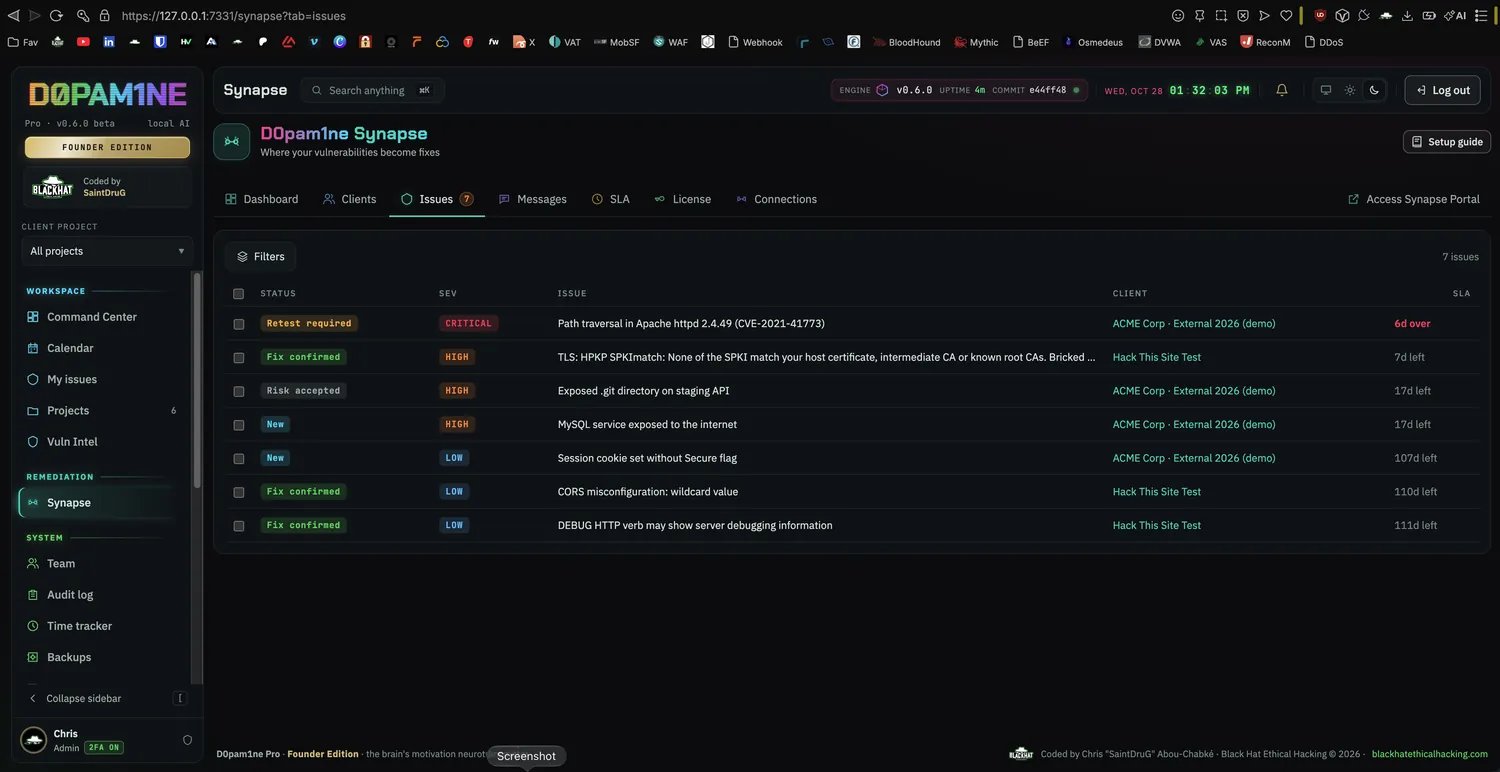
The Issues workqueue: every reported issue across all clients, with status, severity, client and SLA, plus Filters, select and CSV / JSON export.
The workqueue
Every reported issue, across all clients, lands in one list. Filter it by status, severity, overdue, affected asset (host or IP) and client. The client cell is a link that filters the list to that one client. An Apiary-style filter drawer on the right groups the filters into multi-select sections (projects tree, remediation status with icons, severity, and so on) so you can narrow a large queue without hunting through inline dropdowns. Select issues with the row checkboxes, or select all in view, to act on many at once (see Bulk actions and export). Rest the mouse on a row to preview it without opening it: a small card shows the deadline, where the issue sits, its severity and CVSS, the affected assets, the start of the write-up and how many client messages are unread. Previewing never marks those messages seen; only opening the issue does.External and internal issues
Every issue carries its side: External for the internet-facing surface, Internal for findings from inside the client network (from the Black Hole Beacon or an internal test), each internal one with its site. When the queue holds both, an All / External / Internal switch with counts sits at the top right of the workqueue, a Where column shows each issue’s side and site, and the filter drawer gains a Site section. Exports include Network and Site. Opening an issue shows a Where it is card with the host’s address, names and, for an inside machine, device type, operating system, vendor, MAC and site. The Synapse dashboard splits on it too: an External surface and an Internal network tile with open, overdue, critical or high and resolved counts (click one to open the workqueue on that side), a Chase first list of the open issues to act on today across every client (overdue first, then the soonest due), and External and Internal columns plus a resolved bar per client in By client. The tiles and columns appear once any internal issue exists.Status lifecycle
A finding carries one status through its whole life. The remediation-relevant ones:- Reported: the gate into Synapse. Setting a finding to Reported sends it to the client portal; moving it back removes it. See How an issue reaches Synapse.
- Retest required: the client marked it fixed and asked you to recheck.
- Risk accepted: the client chose to accept the issue rather than fix it.
- Fix confirmed / Fix unconfirmed: the outcome of a team retest.
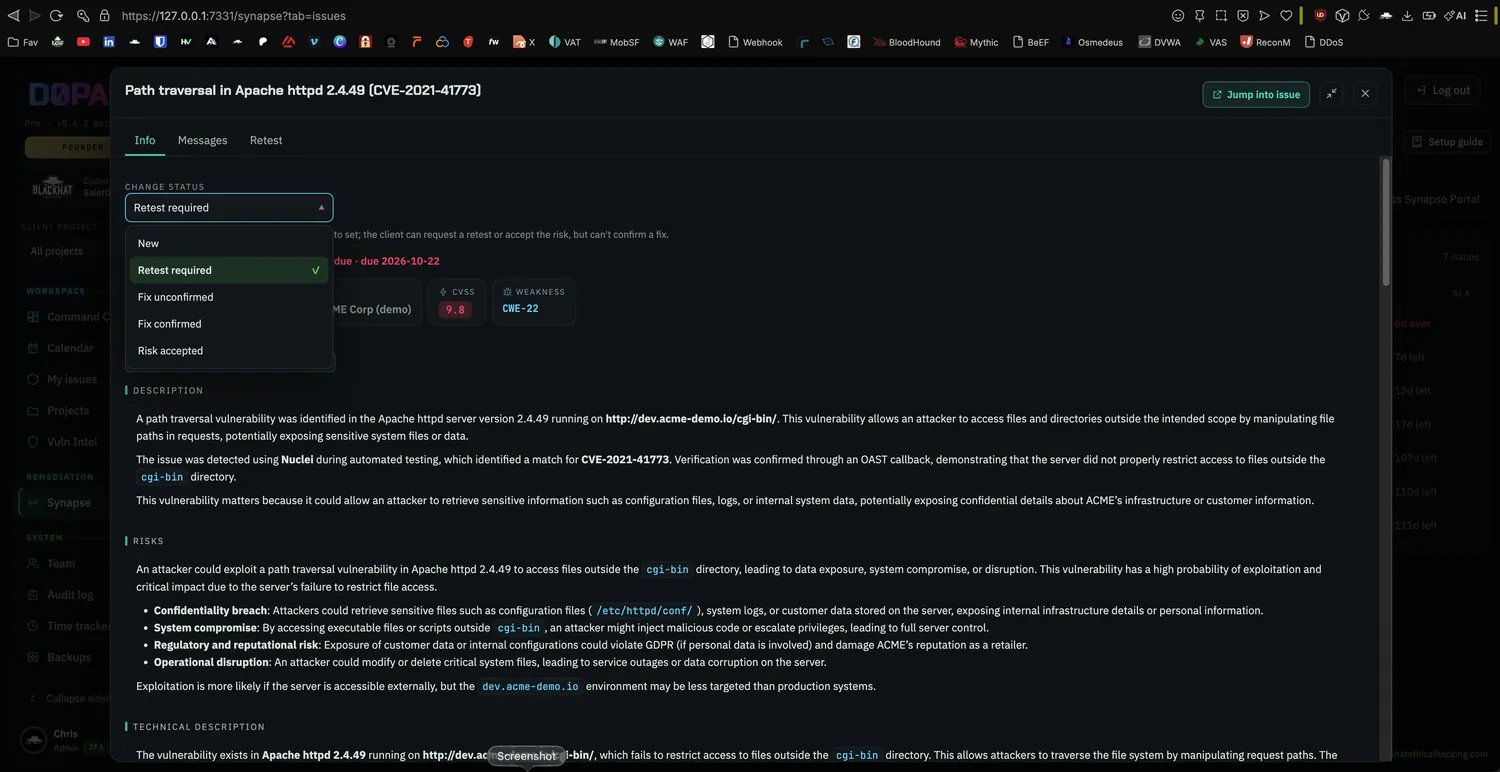
The issue Info tab: CVSS, weakness, affected asset and the full write-up, with Change status in one place.
SLA and overdue tracking
Remediation deadlines are set per severity on the SLA tab: how many days a Critical, High, Medium or Low issue has to be fixed. These drive the overdue tracking across the workqueue and the client’s own view.- A global default SLA applies to every project.
- A per-project override lets a specific engagement run on tighter or looser deadlines without changing the default.
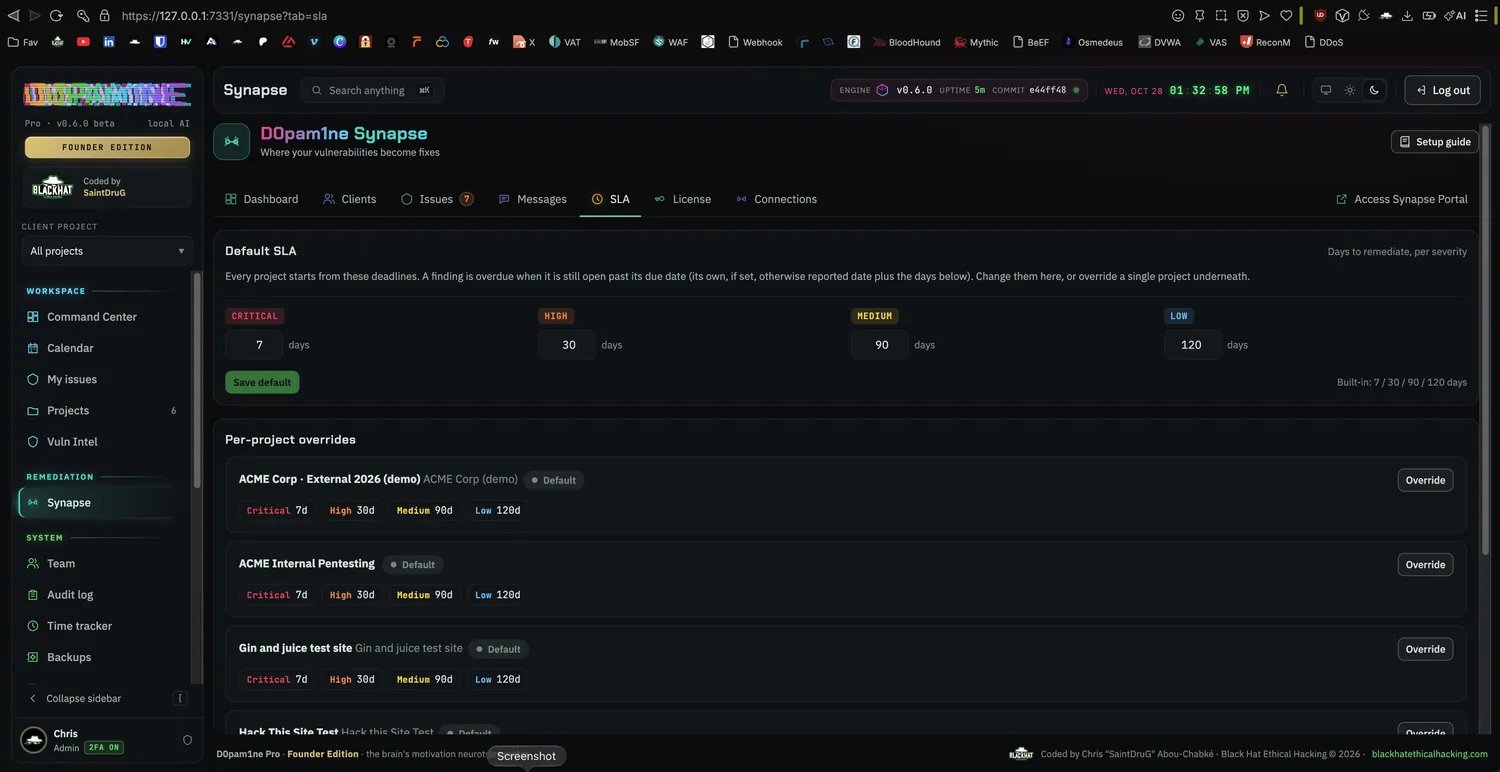
The SLA tab: the global default deadlines per severity, with a per-project override for any engagement that needs tighter or looser dates.
Retest timeline
When a client requests a retest, you retest on your side and push the result. It appears on that same issue’s Retest tab as a new round, and the status moves to Fix confirmed or Fix unconfirmed. The original finding stays the single source of truth; each retest is a clean entry in a timeline under it, never a second copy of the issue. To find and start these quickly, the workqueue shows a Retest requested · N chip that filters to every issue a client asked you to recheck, and each of those rows carries a Retest action that jumps to that project’s Retest page with a new round opened and the finding already added. You go from the cross-client queue into the retest in one click.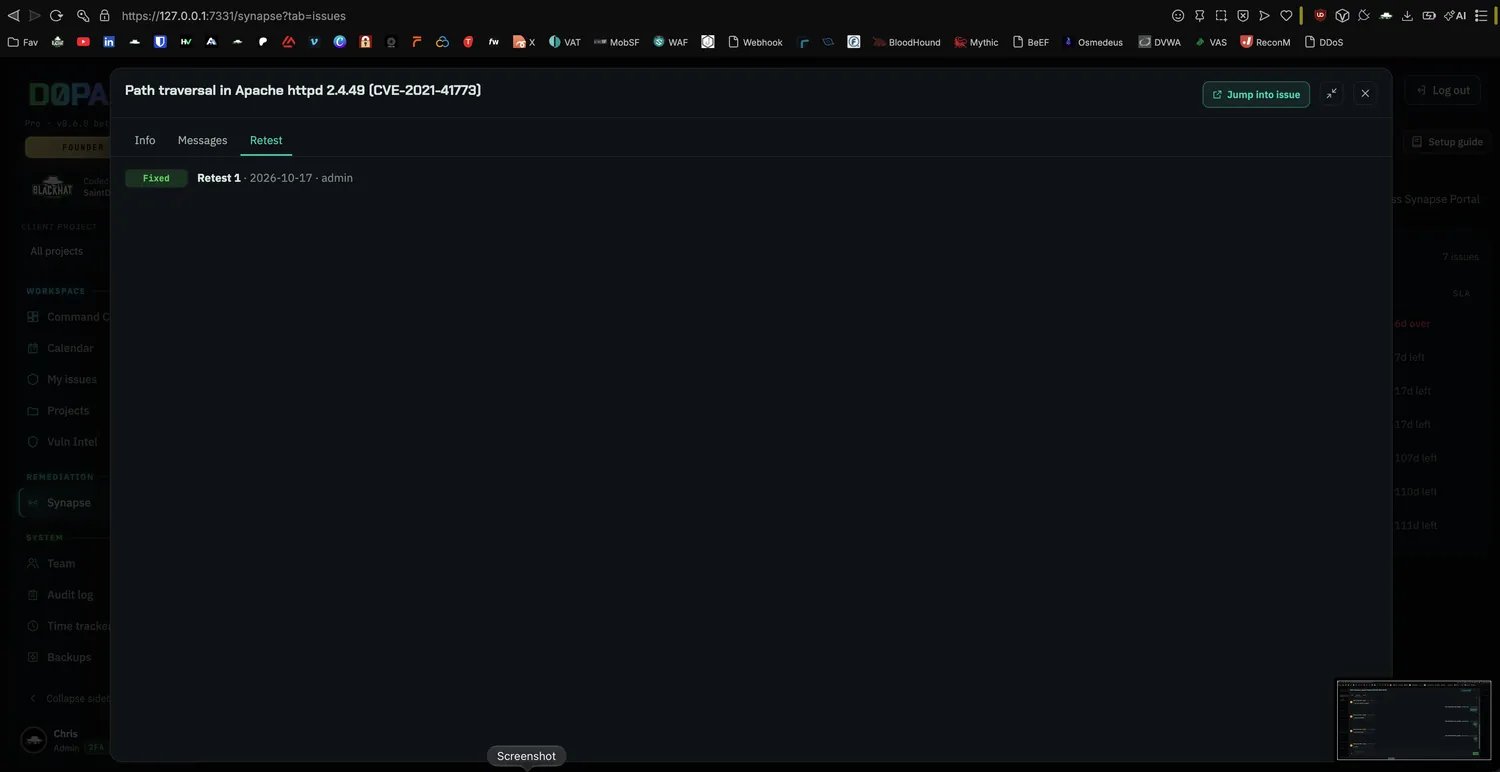
The Retest tab: each round is a dated entry with its outcome, building a clean timeline under the one finding.
Messages
Each issue has its own Messages thread with the client. A thread takes any file, not just screenshots, and shows a Sent / Read receipt. Every per-issue thread also rolls up into the Messages inbox tab, so you can see who wrote on which issue across all clients and reply in one place. Incoming messages appear in the message icon beside the bell, with a live drawer for quick replies. Client remediation actions and other operational updates stay in the bell. Existing email and external-channel preferences still apply. See Message center for quick replies, image previews and the mobile layout.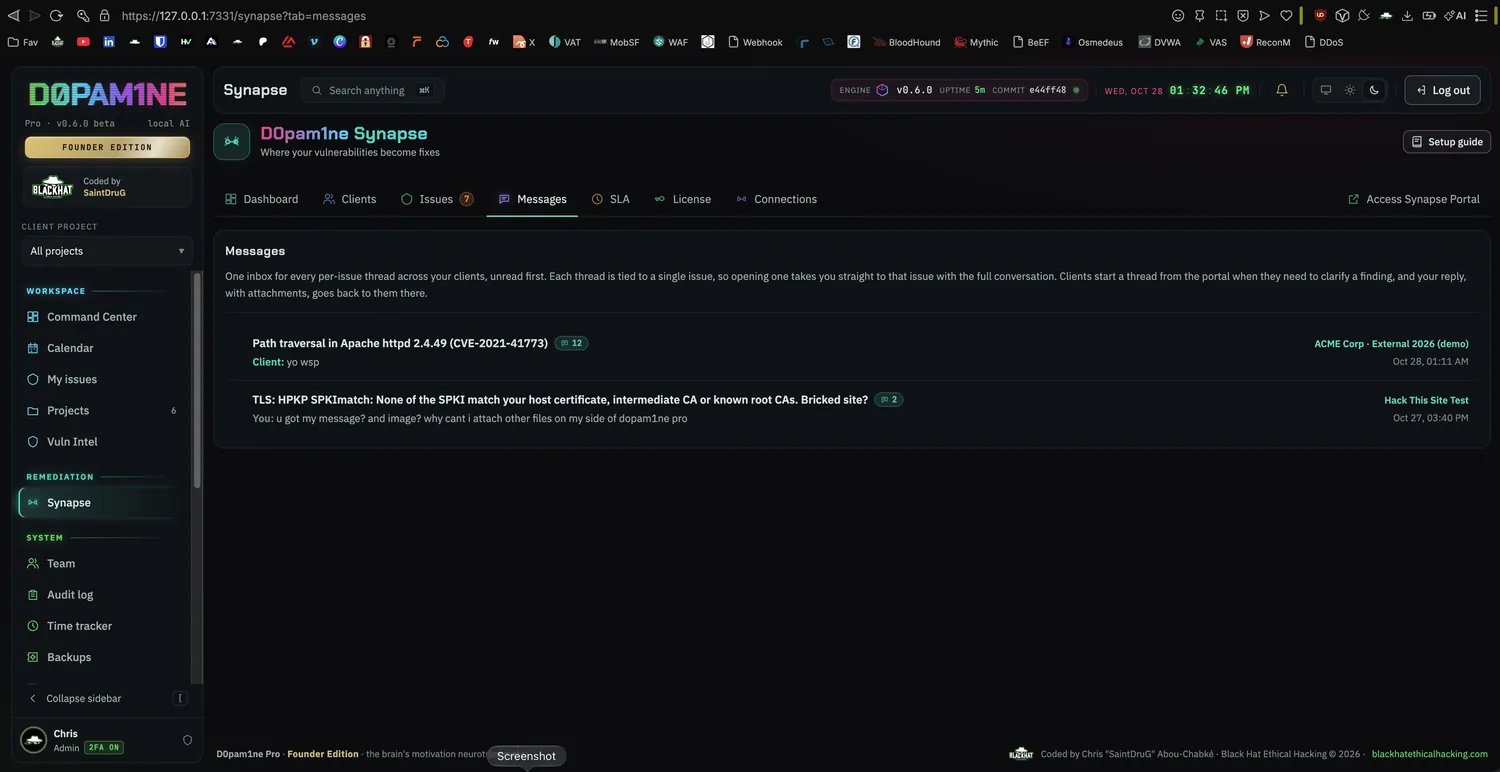
The Messages inbox: every per-issue thread across all clients in one place, unread first, each opening straight to its issue.
Bulk actions and export
With issues selected in the workqueue, you can act on the selection at once and export it:- CSV and JSON export of the selected issues (or all in view), to hand a client or feed another system.
- Bulk status changes across the selection.