
The screenshots below come from an isolated test environment with fictional Acme users and data. A client sent the attachment through the portal and the team received it in Pro.
Send a message or attachment
1
Open the message icon
Click the speech bubble beside the bell. Its badge shows unread messages. A brief arrival alert identifies the sender, project and issue; click it to open that conversation.Existing unread messages appear in the inbox when you connect, without replaying old arrival alerts.
2
Choose the right conversation
Find the client, project or issue in the list, or use search. Open the row to see the same message history used by the full issue view.To start a conversation on an issue that has no messages yet, open that issue’s Messages tab first.
3
Reply and attach a file
Write your reply, add an image or file with the paperclip, and click Send. On a keyboard, Ctrl+Enter or ⌘+Enter also sends the message.If sending fails, the composer keeps your text and attachments so you can retry. An unsent message is not automatically queued for delivery.
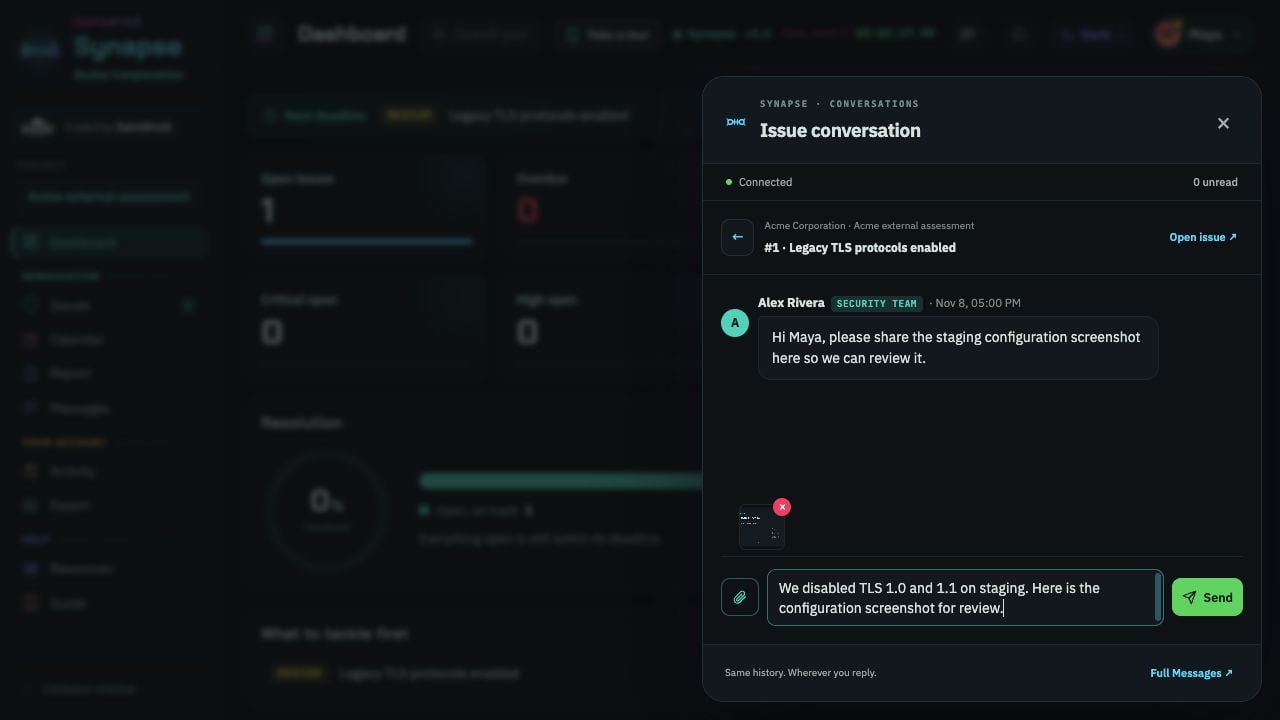
A client prepares a reply and attaches a staging configuration image in the portal.
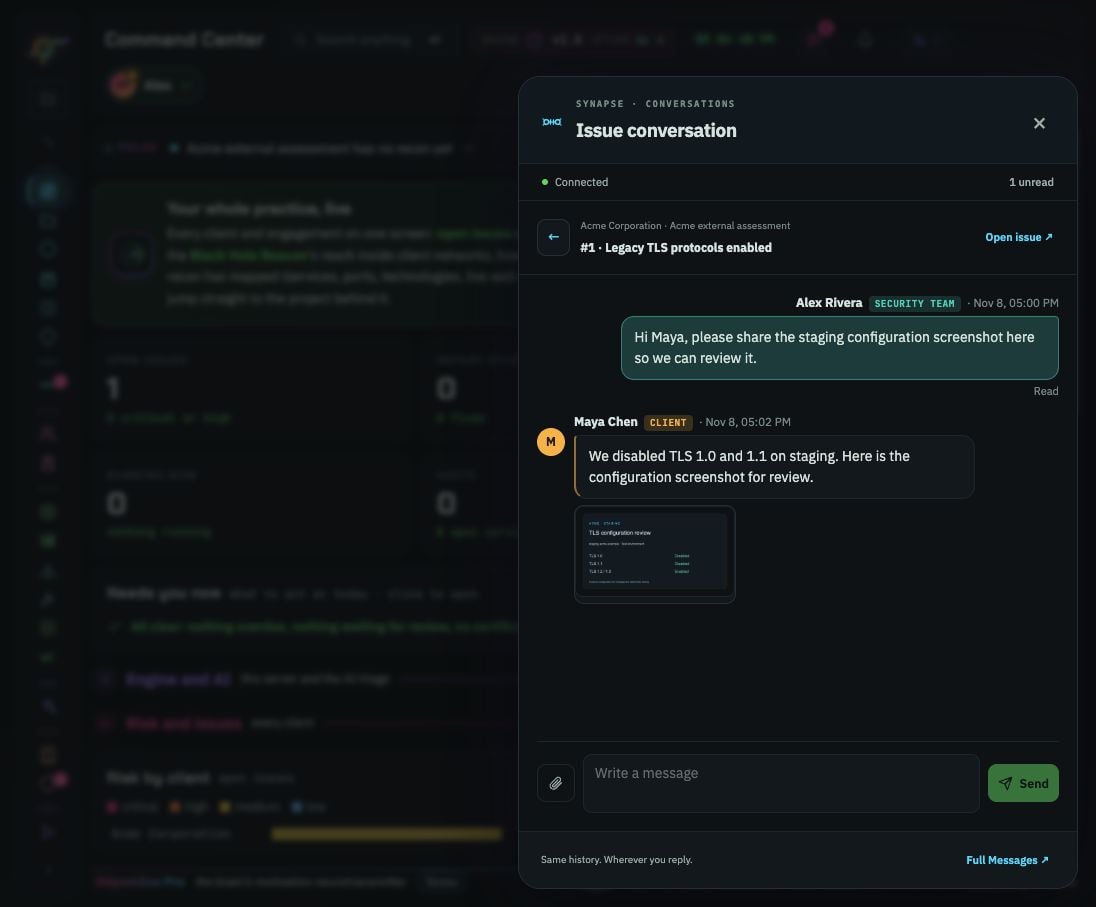
The team receives the message and image in the same issue conversation in Pro.
Preview and download images
Click an image thumbnail in the conversation. The image opens inside the application, with these controls:- Original size shows the image at its stored dimensions. Fit image returns it to the available space.
- Fullscreen expands the viewer. Browsers that support native fullscreen can use it; otherwise the viewer fills the browser window.
- Download saves the image without navigating away from the conversation.
- × closes the viewer and returns to the thread.
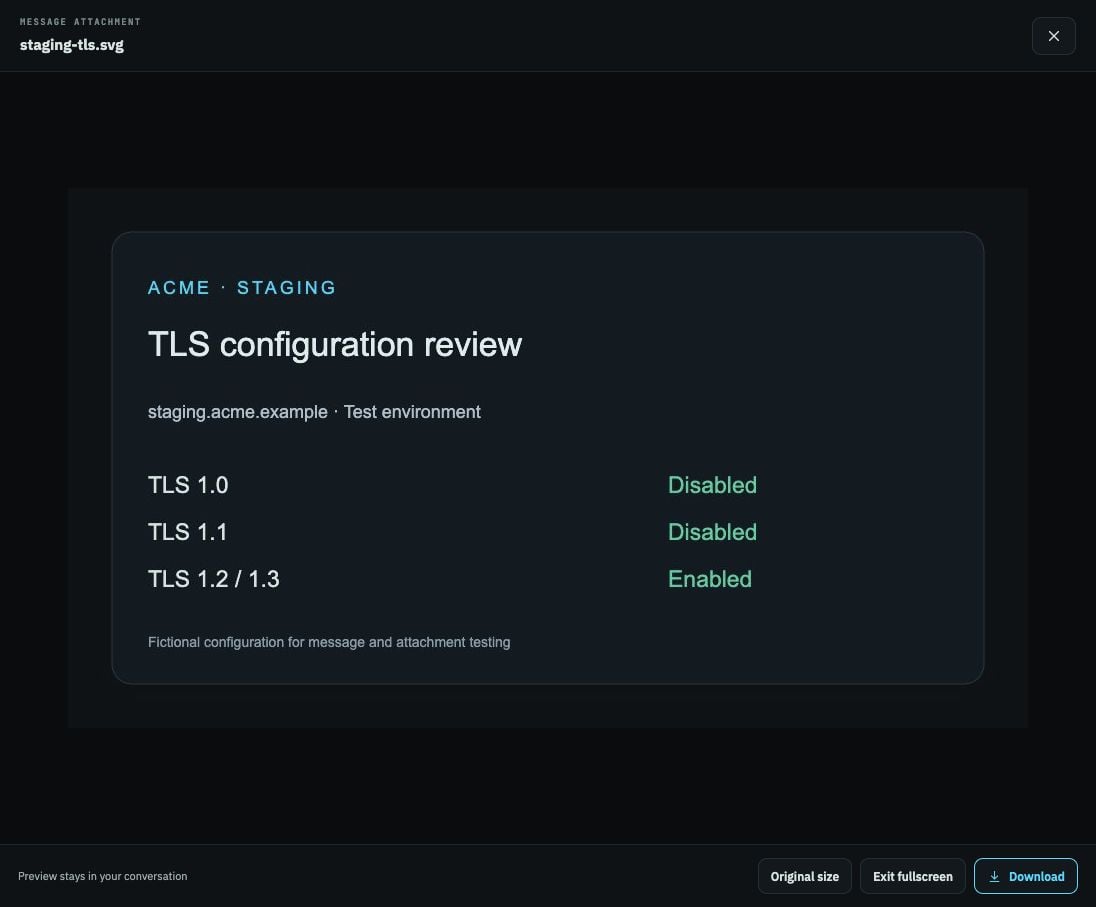
Images open in place, with original-size, fullscreen and download controls. This view is expanded to fill the test browser.
Messaging can resize images. Download uses the stored image format, so a resized screenshot can download as a
.jpg even if the original upload had another extension.Keep the full Messages views
Choose Open issue to continue at the issue’s conversation, or Full Messages to use the existing Messages view. You can still open messages from the Synapse workflow and the client portal. Closing and reopening the drawer keeps an unsent draft during that page session. Drafts are held in memory, and are cleared when you reload, lock or sign out. Send the message before leaving the session if you need to keep it.Unread messages and notifications
Message alerts use the message icon, not the bell. The bell keeps operational updates such as assignments, retests and status changes. Opening or clearing the bell does not mark a conversation read. Opening a thread updates its existing read receipt. Read means the other side opened the conversation; it is not a separate receipt for each team member. Account and project notification preferences still control message arrival alerts. Muting an alert does not hide the conversation or its history. If the connection drops, the icon shows that it is reconnecting and the inbox continues to refresh when possible. Your existing email and external-channel preferences are unchanged.Phone, tablet and themes
On phones, the drawer becomes full-screen. On tablets and desktop, it stays at the side of the page. Images fit the available space, and the viewer’s controls remain available on smaller screens. The compact message icon matches the bell’s control size, has no decorative outline, and follows your current theme. The conversation drawer and image viewer follow the same theme too.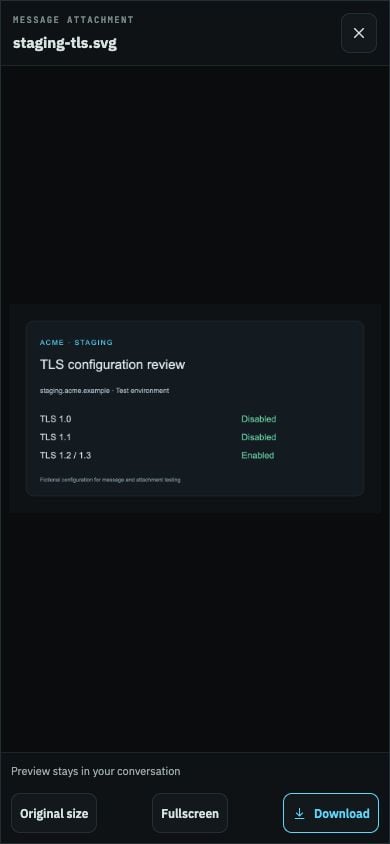
The mobile image viewer keeps its download and fullscreen controls below the image.
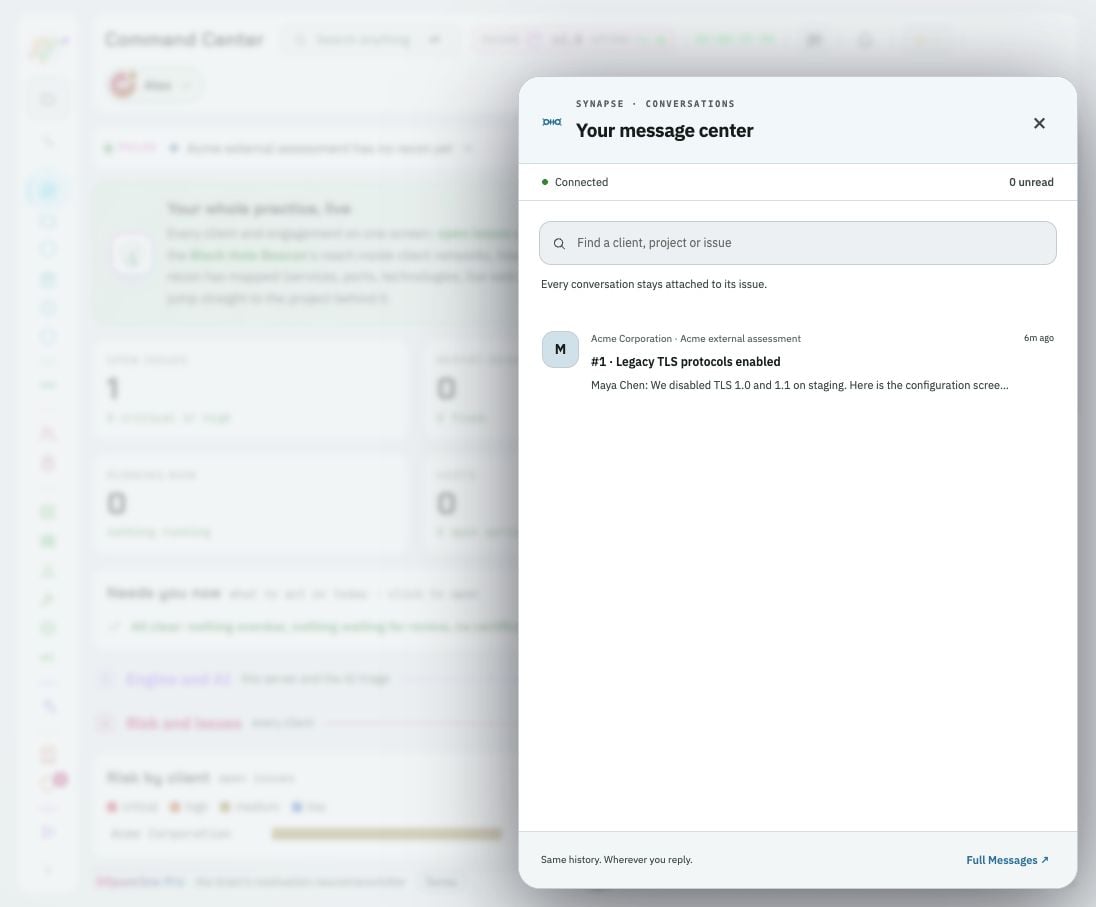
The message center also follows Light and the other available app themes.
Learn the workflow in the app
- In Pro, open Guide, then Synapse message center.
- In Synapse, use the tour’s Message center step or the full Messages inbox.
- In the client portal, use Take a tour, then Message center, or open Guide, then Messages and live chat.
- Synapse AI remains a separate way to ask about an issue’s write-up and evidence. Human replies stay in the issue conversation.